2026年8月3日、MiniMax H3がオープンウェイトで公開され、ComfyUIには公開当日からネイティブ対応が入りました。
テキスト・画像・音声を一体で扱い、ステレオ音声付きの動画を生成できる次世代モデルですが、ローカル実行時の解像度上限や商用利用時のライセンスの地域制限など、公式ブログや先行レビューがあまり触れていない注意点もあります。
この記事では、ComfyUI 0.30.0以降での導入手順から、VRAM別のモデル選定、T2V/I2V/R2V3つのワークフローの使い方、ライセンス上の注意点まで、2026年8月時点の情報としてまとめます。


MiniMax H3とは?
MiniMax H3は、中国MiniMax社が2026年8月3日にオープンウェイトで公開した動画生成モデルです。
Hailuoシリーズの第3世代にあたり、同社として初めて重みを公開したモデルになります。ComfyUIには公開当日からネイティブ対応が入りました。
主なスペックは次の通りです。
- モデル構造:33.1Bパラメータの単一ストリームomni transformer(うち約13BはAdaLN変調系の分岐で、推論のみなら読み込み不要)
- テキストエンコーダー:Qwen3-VL-32B
- 出力:最大15秒、24fps、ステレオ音声付き
- 対応タスク:Text-to-Video(T2V)、Image-to-Video(I2V、先頭/末尾フレーム指定可)、Reference-to-Video(R2V)
- 対応言語:日本語を含む11言語
- チェックポイント:FL2VA(T2V/I2Vを担当)とRef2VA(参照駆動のR2Vを担当)の2系統

MiniMax H3 ComfyUIでの始め方・使い方

ここでは、「ComfyUI」を使ったローカル環境でのMiniMax H3の始め方から使い方まで紹介します。
ComfyUIの導入方法はこちらの記事で詳しく解説しています。

MiniMax H3は、多くのGPUパワーが必要になりますので、余裕をもって準備をしておきましょう。
導入前に「ComfyUI」を起動して最新版に更新しておきましょう。
更新が完了したらデータのインストールに進みます。
次に、動画を生成するためのモデルデータを入手します。
モデルの配布元はHugging FaceのComfy-Org/MiniMax-H3リポジトリです。MiniMax社の公式リポジトリ(MiniMaxAI/MiniMax-H3)は全精度・全フォーマットを含むため約498GBありますが、ComfyUIで使うファイルだけを個別に選んでダウンロードすれば数十GB程度で済みます。
動画生成に必要なモデルデータは下記の3つです。
- 動画のモデルデータ
- テキストエンコーダー
- VAE
ワークフローを読み込むとリストが表示されますので、順番にダウンロードを進めます。
コマンドで一つにまとめたい方はこちらの内容を入力します。
#動画のモデルデータ
cd ComfyUI/models/diffusion_models
wget https://huggingface.co/Comfy-Org/MiniMax-H3/resolve/main/diffusion_models/minimax_h3_fl2va_pruned_int8_convrot.safetensors

#テキストエンコーダー
cd ComfyUI/models/text_encoders
wget https://huggingface.co/Comfy-Org/MiniMax-H3/resolve/main/text_encoders/qwen3vl_32b_minimax_h3_nvfp4_awq.safetensors

#VAE
cd ComfyUI/models/vae
wget https://huggingface.co/Comfy-Org/MiniMax-H3/resolve/main/vae/minimax_h3_audio_vae_fp32.safetensors
wget https://huggingface.co/Comfy-Org/MiniMax-H3/resolve/main/vae/minimax_h3_video_vae_fp16.safetensors今回は公式で配布されている総合ワークフローを使用します。
ワークフローデータは、公式に公開されている公式ワークフローをダウンロードして使用します。
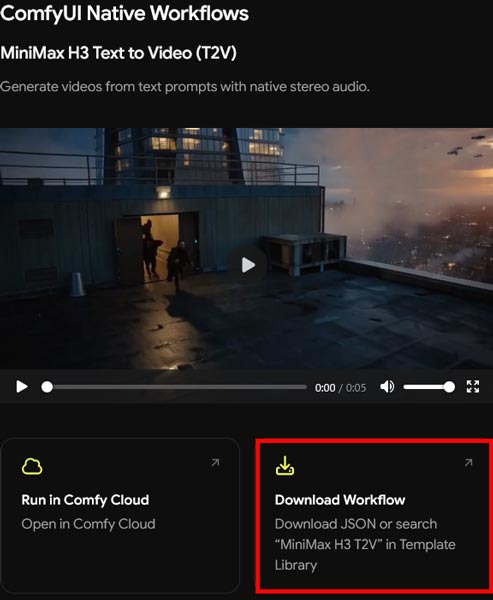
ダウンロードしたワークフローデータをComfyUIの画面にドラッグ&ドロップで読み込みます。
ノードが正常に反映されているか確認します。
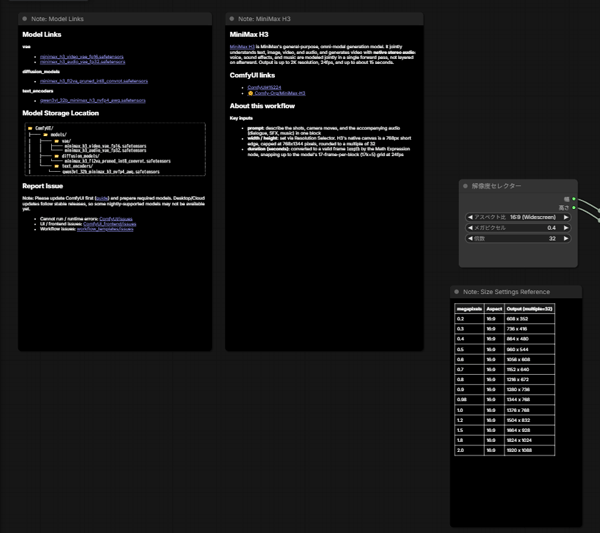
MiniMax H3のtext2videoでは、シンプルなプロンプトで質の高い動画を作成できます。
プロンプトには、情景などを自然言語の形式で文章入力します。
その後「▷Queue」ボタンをクリックして生成を開始します。
MiniMax H3(ComfyUI)で生成した動画
Emotional anime character film. The girl from Picture 1 in her original scene: a warm sunlit wooden hallway indoors, lit by dramatic warm golden backlight and soft ambient fill, deep soft shadow falloff into rich amber tones. Warm monochromatic palette with golden light and soft blue accents from her eyes. Emotional motif: a desperately reaching hand and a single falling tear. The environment is constant throughout.
SHOT 1: The scene opens exactly on Picture 1, the girl reaching desperately toward the camera; her eyes well with tears as the golden backlight pulses slightly brighter, dust motes drifting past as the camera executes a slow, deliberate push-in on her straining fingers and glistening eyes.
SHOT 2: Cut to an extreme close-up profile as her tear finally spills down her flushed cheek; the camera glides slowly alongside her face as loose strands of hair sweep across in the warm draft, her collar and necktie trembling faintly.
SHOT 3: Cut to a low, tilted wide shot: she loses her balance and tips forward, her twin tails sweeping wildly, the retreating figure’s footstep fading further out of frame; the warm light flares gently along her damp eyes before the frame settles into a soft freeze as her hand falls just short.
Audio: soft ambient room tone, a trembling desperate breath, rustling fabric and a faint hair ornament chime, receding footsteps on wood, and a swelling emotional piano-and-strings score that resolves to a hushed, breathless quiet on the final beat.
MiniMax H3のtext2videoでは、1枚の画像を参考にして動画を生成することができます。
ワークフローは、同じように公式ワークフローページで配されています。。
プロンプトには、動画のシーンを振り分け(SHOT1-3)して入力します。
その後「▷Queue」ボタンをクリックして生成を開始します。
I2Vで生成した動画
Emotional anime character film. The girl from Picture 1 in her original scene: a warm sunlit wooden hallway indoors, lit by dramatic warm golden backlight and soft ambient fill, deep soft shadow falloff into rich amber tones. Warm monochromatic palette with golden light and soft blue accents from her eyes. Emotional motif: a desperately reaching hand and a single falling tear. The environment is constant throughout.
SHOT 1: The scene opens exactly on Picture 1, the girl reaching desperately toward the camera; her eyes well with tears as the golden backlight pulses slightly brighter, dust motes drifting past as the camera executes a slow, deliberate push-in on her straining fingers and glistening eyes.
SHOT 2: Cut to an extreme close-up profile as her tear finally spills down her flushed cheek; the camera glides slowly alongside her face as loose strands of hair sweep across in the warm draft, her collar and necktie trembling faintly.
SHOT 3: Cut to a low, tilted wide shot: she loses her balance and tips forward, her twin tails sweeping wildly, the retreating figure’s footstep fading further out of frame; the warm light flares gently along her damp eyes before the frame settles into a soft freeze as her hand falls just short.
Audio: soft ambient room tone, a trembling desperate breath, rustling fabric and a faint hair ornament chime, receding footsteps on wood, and a swelling emotional piano-and-strings score that resolves to a hushed, breathless quiet on the final beat.

スポンサーリンク
MiniMax H3のよくあるエラーと対処法

- ComfyUIにMiniMax H3のノードが出てこない
-
ComfyUIが0.30.0より古いバージョンです。最新版に更新してください。Desktop版・Cloud版は安定版のリリースに追従するため、反映が遅れる場合があります。
- VRAM不足・メモリ使用量が高い
-
拡散モデルをbf16ではなくpruned int8、テキストエンコーダーはnvfp4 AWQを使用してください。それでも厳しい場合は、Resolution Selectorのメガピクセル数を下げる、durationを短くする、といった調整が有効です。
- 256pなど低い解像度で生成が失敗する
-
MiniMax H3の最低解像度は384pです。256p以下は失敗するため、テンプレートの解像度プリセットから選んでください。
- 出力動画に音声が入っていない
-
minimax_h3_video_vae_fp16.safetensors(映像用)とminimax_h3_audio_vae_fp32.safetensors(音声用)の両方が読み込まれているか、またVAEDecodeAudioノードがSaveVideoノードに接続されているかを確認してください。 - I2Vで使うチェックポイントがわからない
-
T2VとI2V(先頭/末尾フレーム指定含む)はFL2VA系、参照素材から生成するR2VはRef2VA系を使います。両者は別の重みなので、間違えるとワークフローが正しく動きません。

MiniMax H3のライセンスと商用利用の可否

MiniMax H3の料金プランと商用利用について解説します。
MiniMax H3は「MiniMax H3 Community License」という独自ライセンスの下で公開されています。
この記事執筆時点で確認できた主な条件は次の通りです。
| 項目 | 内容 |
|---|---|
| 対象地域(Applicable Territory) | 世界中で利用可能。ただし「Excluded Territories」としてEU・英国・韓国・米国が明示的に除外されている |
| 日本での扱い | Excluded Territoriesに日本は含まれていない。現時点のライセンス上は国内での利用・商用利用ともに対象範囲内と読める |
| 商用利用 | 無償で可能。ただし商用プロダクトのUI上に「MiniMax H3」の表示が必須 |
| 売上規模の制限 | 年間売上が2,000万ドルを超える場合は、MiniMax社への個別の書面許諾が必要 |
| その他 | 生成物を使って他のAIモデルを改善する行為(蒸留など)は禁止。改変ファイルの明示やNOTICEファイルの同梱などの再配布条件あり |
| 準拠法 | 香港特別行政区法 |
この地域制限の条項は、MiniMax H3を扱う海外の技術ブログで話題になっています。
日本からの利用自体は対象地域内ですが、自社サービスに組み込む場合はライセンス原文(Hugging Face上のLICENSEファイル)を法務担当と確認したうえで判断しましょう。
本記事の内容は法的助言ではありません。
MiniMax H3のような動画生成AIにはクラウドGPUがおすすめ

MiniMax H3で高画質の動画を生成するには、高スペックなパソコンが必要です。
ただし、MiniMax H3を快適に利用できるような高性能なパソコンは、ほとんどが30万円以上と高額になります。
コストを抑えたい方へ:クラウドGPUの利用がおすすめ
クラウドGPUとは、インターネット上で高性能なパソコンを借りることができるサービスです。これにより、最新の高性能GPUを手軽に利用することができます。
クラウドGPUのメリット
- コスト削減:高額なGPUを購入する必要がなく、使った分だけ支払い
- 高性能:最新の高性能GPUを利用できるため、高品質な画像生成が可能
- 柔軟性:必要なときに必要なだけ使えるので便利
MiniMax H3を使いこなして最先端動画生成AIをマスターしよう!
今回は、動画生成AIの最新バージョン「MiniMax H3」の使い方について紹介しました。
無料で利用できる動画生成AIのオープンソースの中でトップクラスなので、このチャンスに高性能ツールで動画生成を極めてみましょう。